- Multi-device compatible use The Handlebar Display and APP can run simultaneously without interference. If you need to use the APP, please turn on the Geeko Cap in advance to ensure normal signal connection between devices.
Drawings & Photos
GD01
The GD01 is a compact LCD display designed to be mounted on the left side of the handlebar. It is compatible with handlebars with a diameter of 22.2mm, measuring just 83mm x 48mm x 48mm, and offers clear visibility.
S700
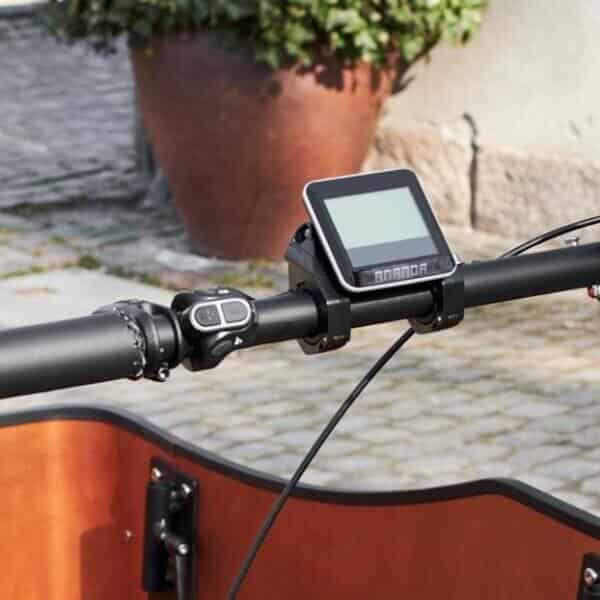
The S700 is a highly visible LCD display designed to be mounted in the center of the handlebar. Measuring 84.7mm x 121mm x 79mm, it supports large font display for easy readability. It also comes with a button accessory, which can be mounted on either the left or right side of the handlebar—compatible with handlebars that have a 22.2mm diameter.
M210C
The M210C is an ultra-compact color TFT display, specifically designed for handlebars with a diameter of 22.2mm. It measures a mere 71.8mm × 25.6mm × 42.2mm, and is equipped with a 1.6-inch screen with a resolution of 170×320, ensuring clear visibility. Its compact size keeps the handlebar neat and uncluttered, and it can be mounted on either the left or right side of the handlebar. Installation is simple: there is no need to remove the handlebar grip—just fasten the two half-rings around the handlebar and secure them with screws.
Note:
The M210C display is only compatible with the controller model A2PA. You can check the controller model in the “Device Information” section of the APP.
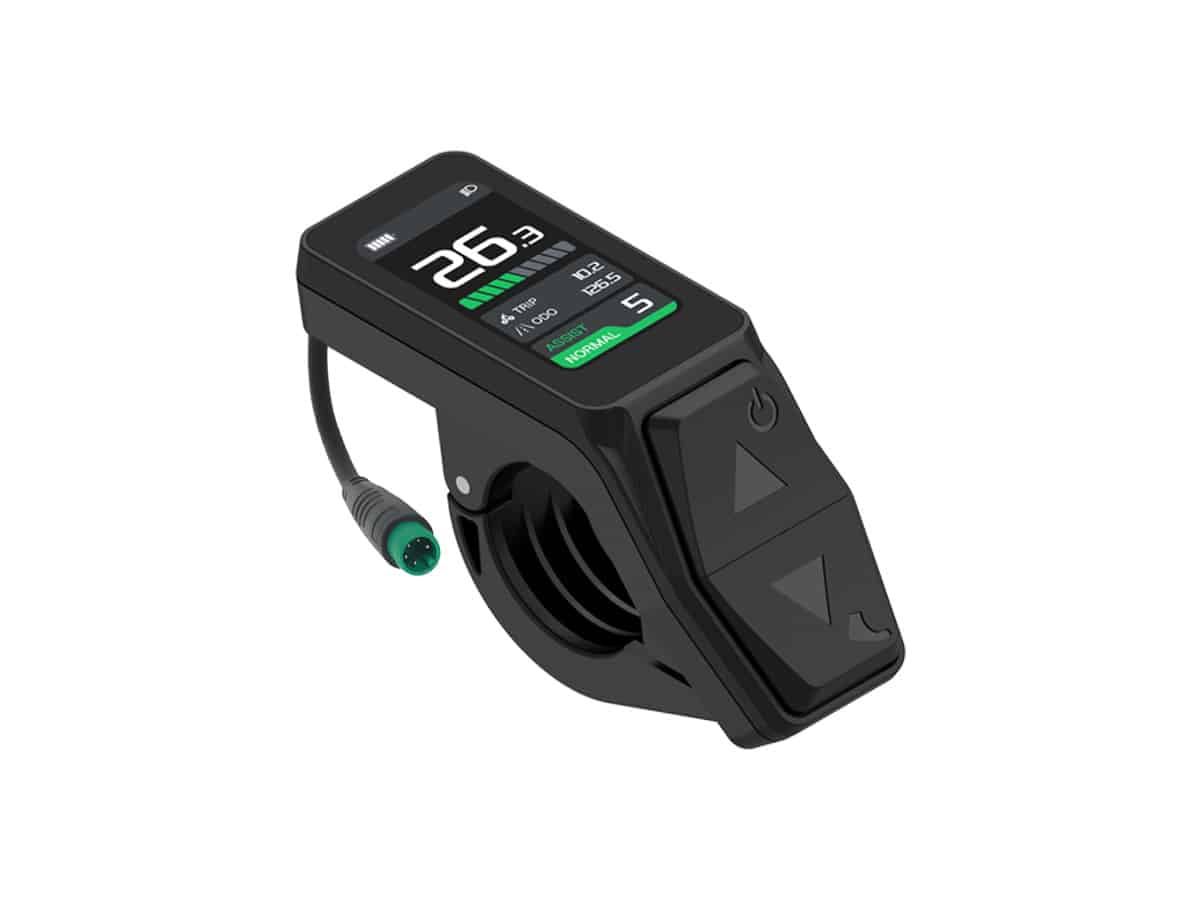
M210CTL
The M210CTL is an ideal TFT instrument. It integrates a thumb throttle function while retaining the ultra-compact size of the M210C. With dimensions of just 79.6mm × 49.5mm × 52mm, it is compatible with handlebars with a diameter of 22.2mm. Due to the built-in thumb throttle, it must be mounted on the left side of the handlebar. Installation is straightforward: there is no need to remove the handlebar grip—simply fasten the two half-rings around the handlebar and secure them with screws.
If you prefer a cleaner and more sleek appearance for your handlebar, the M210CTL is your ideal choice.
The C810 display is only compatible with the controller model A2PA. You can check the controller model in the “Device Information” section of the APP.
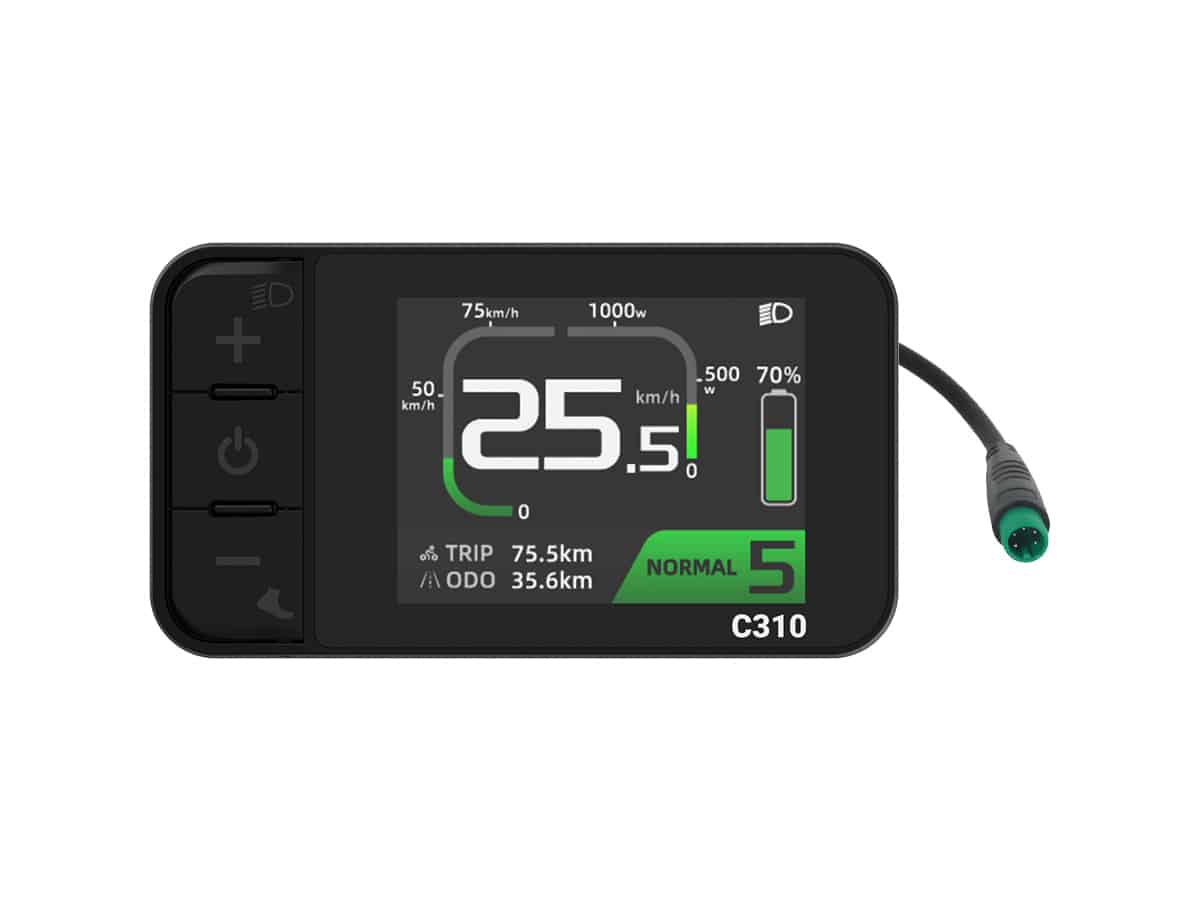
C310
The C310 is a compact TFT display designed for mounting on the left side of the handlebar. It is compatible with handlebars with a diameter of 22.2mm, measuring just 50mm × 90mm × 47mm. Equipped with a 2.4-inch screen and boasting a resolution of 240×320, it ensures clear visibility.
The C310 display is only compatible with the controller model A2PA. You can check the controller model in the “Device Information” section of the APP.
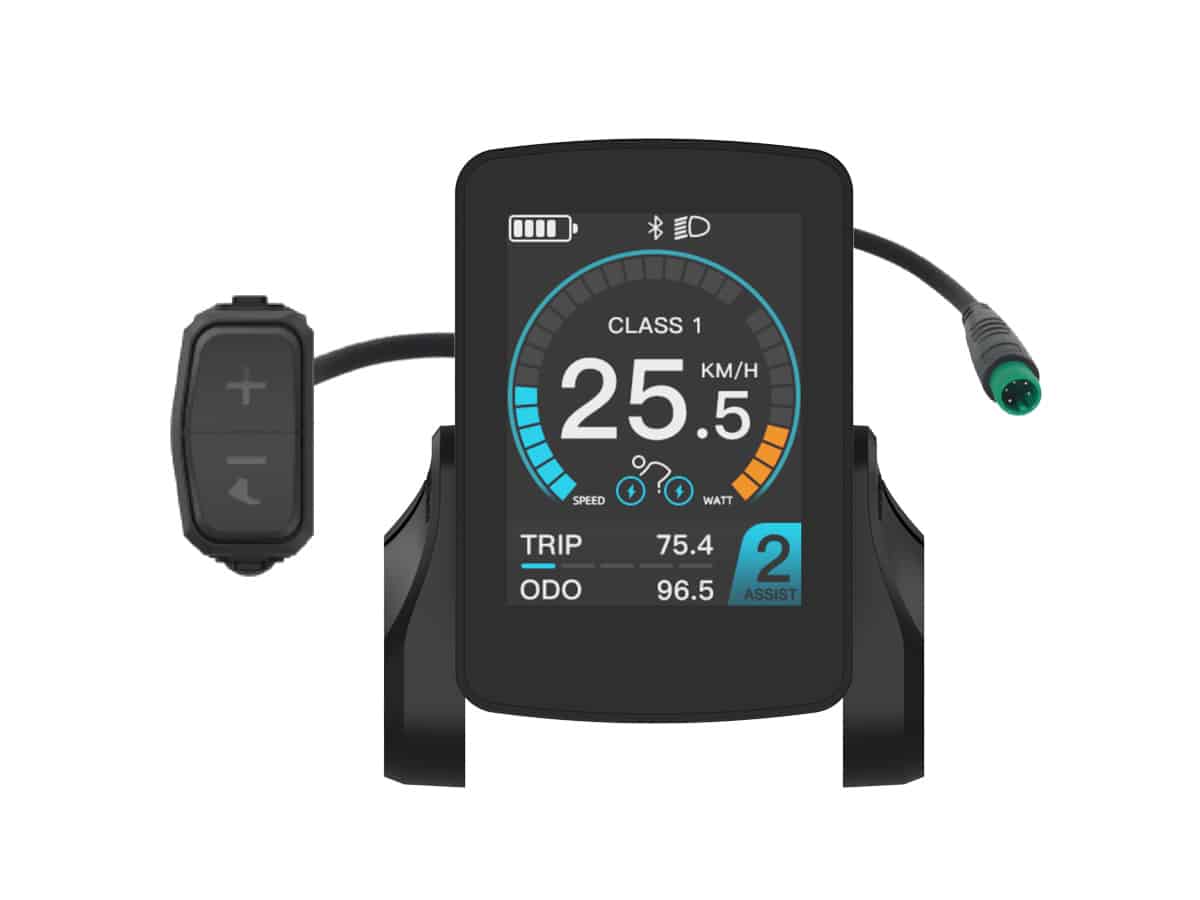
C810
The C810 is a split-type color TFT display, consisting of two independent components: the display screen and the control buttons. The display screen is mounted in the middle of the handlebar, allowing you to quickly access system information and other data; the control buttons can be installed on either the left or right side of the handlebar, enabling convenient gear adjustment. Measuring just 95.4mm × 79.4mm × 58.5mm, it is equipped with a 3.0-inch screen with a resolution of 240×320, ensuring clear visibility. It should be noted that while the display screen is compatible with handlebars of 22.2mm, 25.4mm, and 32mm in diameter, the control button component can only be mounted on handlebars with a diameter of 22.2mm.
The M210CTL display is only compatible with the controller model A2PA. You can check the controller model in the “Device Information” section of the APP.
Accessories Pre-installation/Post-installation
If Geeko kit and accessories you purchased were sent from China, usually we have already installed the accessories for you, you just need to connect the cable for the accessory.
If Geeko kit and accessories were sent from EU warehouse, or you have been using the Geeko kit for some time and want to extend the accessories for the Geeko, such as head light, rear light, handlebar display, or phone holder with USB charger. In the above cases, you need to extend the cables for the Geeko bracket controller by yourself. Don’t worry, this job is easy.
Expand Accessories Myself
Parameter Setting Guide for Handlebar Display Expansion
After Handlebar Display expansion, parameters can be synced via two methods:
- Automatic Sync (Recommended)
- Plug in the battery and turn on the Intelligent Display of battery
- Turn on the Handlebar Display, and parameters will sync automatically.
- Manual APP Setting (Suitable for All Scenarios)
- Turn on both the Intelligent Display of battery and Handlebar Display.
- Open the 100G APP, enter Advanced Setting Mode(Please refers to APP Manual, chapter 5), and configure motor type, wheel diameter, and speed limit.
APP Manual
Daily Usage Tips
For regular riding, only turn on the Handlebar Display (no need to turn on the Intelligent Display of battery).
To use the 100G APP, please turn on the Intelligent Display of battery.