Off Order sending, by default Non-toxic orders work only on the sessions you mark Active, within your limits.
On this page
- New: non-toxic orders, trailing stop, flow profile and 76 indicators
- What the module does
- What it looks like in a chat
- What an agent can and cannot do
- Permission groups
- Setup in SharpTrader
- Supported AI clients
- Connecting DeepSeek (Cherry Studio)
- Security
- Requirements and pricing
- FAQ
New: non-toxic orders, trailing stop, flow profile and 76 indicators
The AI agents server now has 37 tools. An agent can book non-toxic orders that SharpTrader sends and closes on schedule, protect them with a stop loss, take profit and trailing stop, show how each account’s order flow looks to the broker, and calculate 76 technical indicators. Everything starts switched off, and you set the limits for each account. These are real orders and can lose money. In the video they are called camouflage orders.
The update in 3 minutes. Details: AI agent orders in SharpTrader.
Free agent skills. Nine skills teach your agent to plan non-toxic orders within your limits: Non-toxic skills for AI agents.
What the module does
Short answer SharpTrader gets a small server inside it that speaks the Model Context Protocol (MCP), the open standard AI assistants use to connect to other programs. Your assistant (Claude, ChatGPT and others) connects to it with an access token and then works with SharpTrader the way you do in its windows: it reads the same data and presses the same buttons, within the permissions you set.
You no longer need to open a remote desktop to your VPS just to check whether everything is running. Ask “which sessions are disconnected?”, “show me the log of strategy 21”, “what was the net profit and the average slippage of my LockCL2 strategy this week?” or “stop all strategies before the news”, and the assistant calls the right SharpTrader tool and answers in a few seconds. With Claude or ChatGPT on your phone you can do the same by voice.
What it looks like in a chat
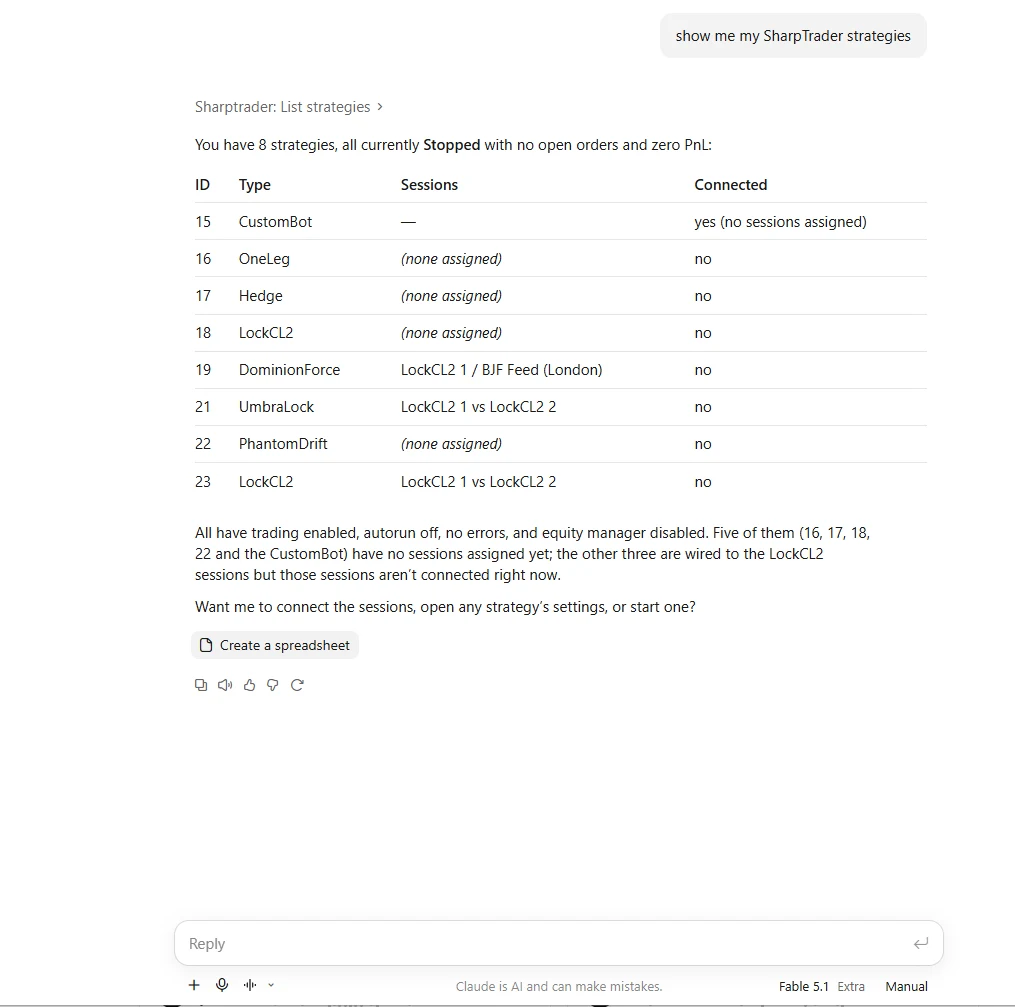
Here SharpTrader runs on a VPS and Claude runs on a home computer. One question returns every strategy with its ID, type, sessions and connection state, and the assistant suggests the next step.
Claude Desktop connected to SharpTrader: “show me my SharpTrader strategies”.
Claude Desktop ChatGPT Voice from the phone
What an agent can and cannot do
Settings follow the same rules as the strategy windows: general settings and custom bot parameters change only while a strategy is stopped, equity manager values and instrument numbers can change while it runs, and one wrong value means nothing is changed and every problem is listed.
Permission groups
Every tool belongs to one of five groups. The switches on the settings page decide which groups an agent may use, and every call is checked again on the server.
Setup in SharpTrader
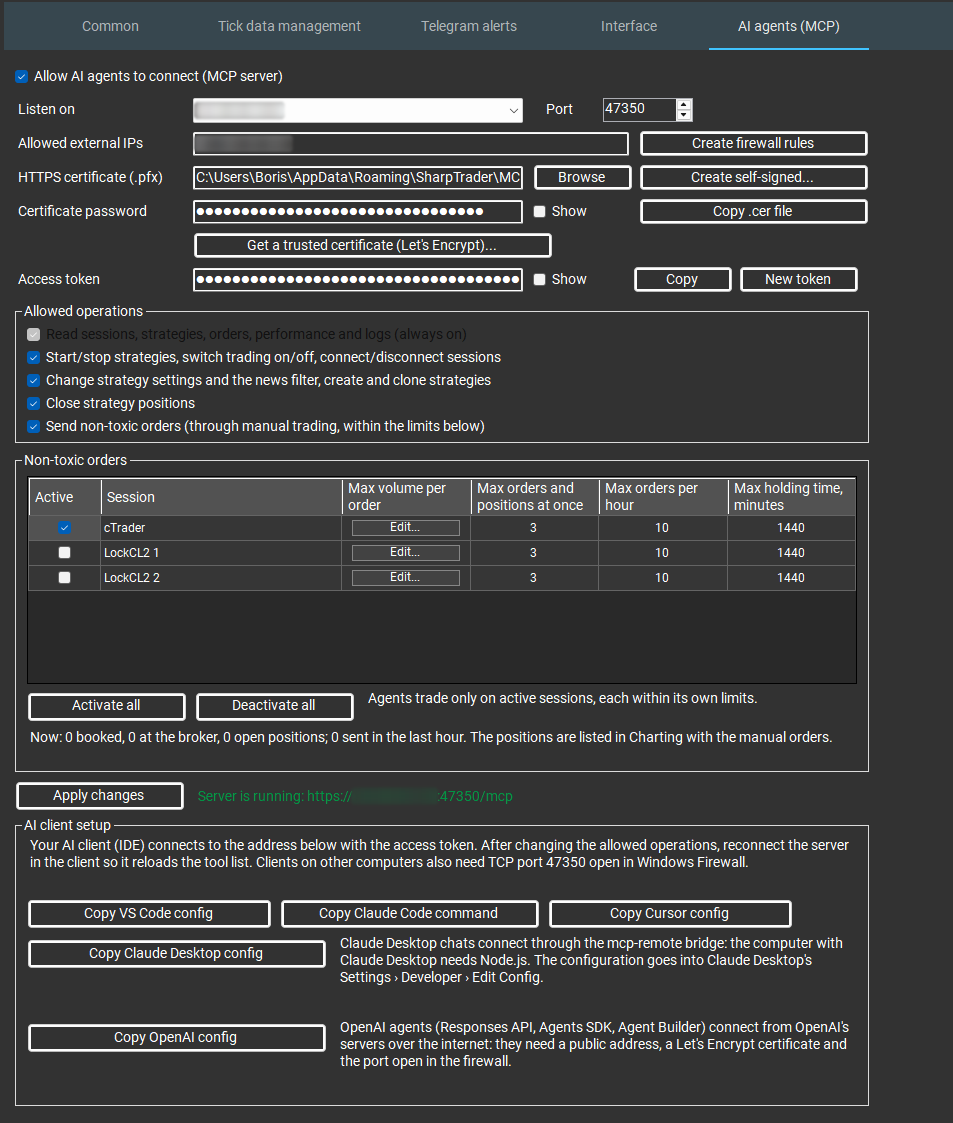
Everything is on one page: Settings › AI agents (MCP). If your assistant runs on the same computer as SharpTrader, tick “Allow AI agents to connect”, keep “This computer only” and press Apply changes. If SharpTrader runs on a VPS and the assistant on your own computer:
Listen on choose the VPS address. Keep the default port 47350.
Allowed external IPs enter the IP address of your home computer, then press Create firewall rules. SharpTrader adds the Windows Firewall rules for you.
Certificate and token press Create self-signed, then Copy.cer file and paste the file on your computer with Ctrl+V (also over Remote Desktop); copy the access token.
Permissions tick “Allow AI agents to connect”, choose the allowed operations and press Apply changes. The status shows “Server is running”.
Orders (optional) to let an agent trade, tick Send non-toxic orders, accept the risk warning, mark the sessions agents may trade on as Active and set each session’s limits. Start small, then press Apply changes.
SharpTrader › Settings › AI agents (MCP). Order limits are set for each session in the Non-toxic orders grid; the buttons at the bottom copy a ready configuration for each AI client.
The full walkthrough for Claude and ChatGPT, with every field explained, is in our guide MCP for trading: control your trading software with Claude and ChatGPT.
Supported AI clients
ChatGPT desktop app: the SharpTrader MCP server entry.
Connecting DeepSeek (Cherry Studio)
Short answer DeepSeek’s web and mobile apps cannot use external tools, so it connects through Cherry Studio, a free open-source desktop client with a built-in DeepSeek provider and MCP support. Paste a DeepSeek API key, add SharpTrader as an MCP server, and deepseek-flash or deepseek-v4-pro can read your strategies, orders, performance and logs through the same tools as Claude and ChatGPT. Pay-as-you-go API pricing; everyday queries cost a few yuan a month. For users in mainland China this is the route that works without a VPN.
Video tutorial for our Chinese-speaking users (Chinese narration, 3:47): Cherry Studio install, DeepSeek API key, adding the SharpTrader MCP server, first message. PDF guide (Chinese).
SharpTrader on the AI agents page press Get a trusted certificate (Let’s Encrypt)… (needs a domain name pointing at the VPS). Cherry Studio accepts only trusted certificates, not the self-signed one.
Cherry Studio 2.0+ from cherry-ai.com; DeepSeek API key from platform.deepseek.com (top up any amount first).
Settings › Model Provider › DeepSeek paste the key, fetch the model list, add deepseek-flash, switch the provider on.
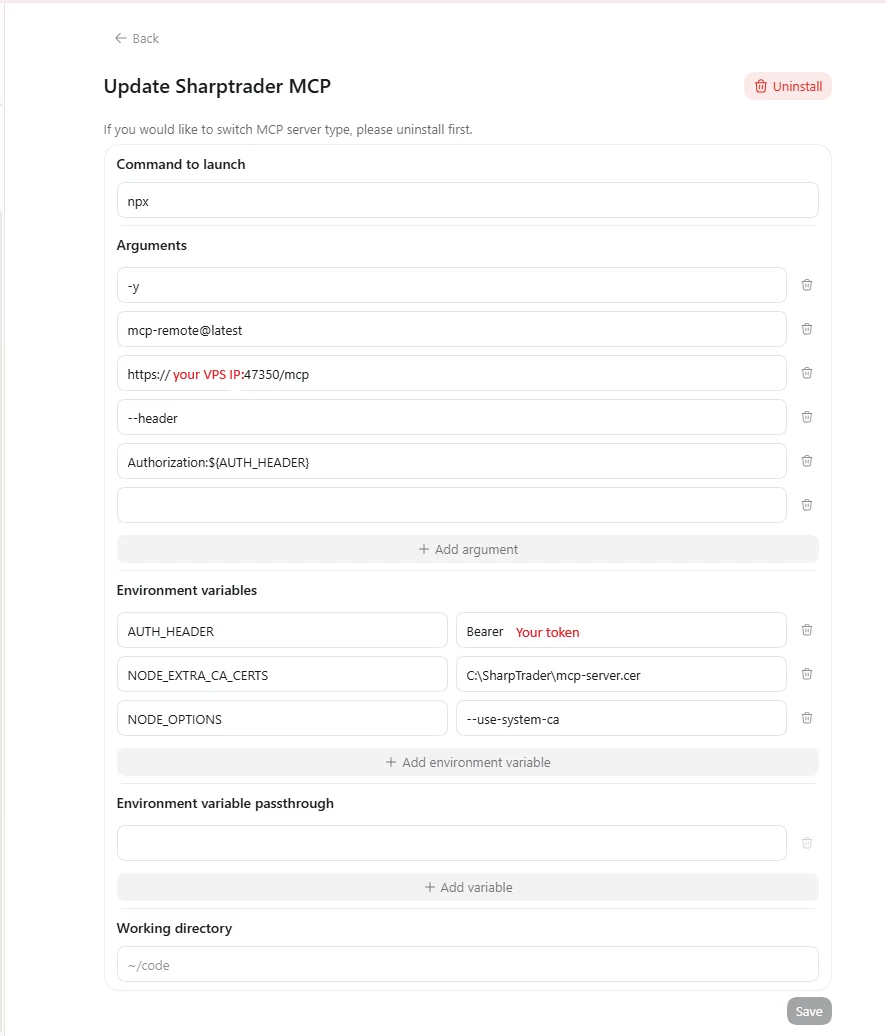
Settings › MCP › MCP Servers › Add › Import from JSON type streamableHttp, the https address from “Server is running”, header Authorization: Bearer <token>. Enable the server.
In a chat model deepseek-flash, open the + menu › MCP › enable sharptrader, then ask for the SharpTrader overview and strategy list.
Cherry Studio › Settings › Model Provider › DeepSeek (Chinese UI shown; the English UI has the same layout): ① provider ② API key ③ fetch models and add deepseek-flash ④ enable switch. Cherry Studio › Settings › ① MCP › ② MCP Servers › Add › Import from JSON. Cherry Studio chat: ① switch the model to deepseek-flash ② open the + menu ③ MCP › enable sharptrader, then ask.
Field-by-field instructions and troubleshooting are in MCP for Trading › Connecting DeepSeek.
Security
Requirements and pricing
- Module price $945, one-time payment.
- Included free the Charts and Manual Trading module: the Charting tab with all indicators and manual trading. Sold separately as an add-on for $495 (regular price $1,100).
- Works with SharpTrader Pro and SharpTrader Lite. The module is enabled on your existing SharpTrader license.
- Your AI assistant your own Claude or ChatGPT account, a DeepSeek API account (through Cherry Studio), or another MCP client. The assistant’s subscription or API usage is not included.
- Windows SharpTrader on your computer or a Windows VPS; for remote access, the MCP port open at the VPS provider.
- Support free technical support from BJF Trading Group, including help with the first connection.
Ask SharpTrader instead of logging in to your VPS
Status, logs, performance, start/stop and, if you switch it on, orders inside your limits, from Claude or ChatGPT, on your computer or your phone.
Add to cart Read the guide: MCP for trading
FAQ
Can the AI open trades on my account?
Only if you allow it. Order tools are off by default. When you switch on non-toxic orders and accept the risk warning, an agent can send orders through manual trading on the sessions you mark Active, within the limits you set for each one: volume per order, orders at once, orders per hour and holding time. It can never change those limits.
Which AI assistants work with it?
Claude Desktop (with a ready extension file), the ChatGPT desktop app, DeepSeek through Cherry Studio, Claude Code, VS Code in Copilot agent mode, Cursor, and OpenAI’s hosted agents. Any client that supports MCP over HTTPS with a header token can connect.
Can I use it from my phone?
Yes. Once the assistant is connected on your computer, you can ask the same questions in its mobile app, by text or by voice.
Does SharpTrader have to run on the same computer as the assistant?
No. SharpTrader can run on a VPS. You choose the VPS address in “Listen on”, allow your home IP and use the certificate SharpTrader creates for you.
Is my access token safe?
The token is stored encrypted for your Windows user, sent only over HTTPS when the connection leaves the computer, and repeated wrong tokens are blocked. Treat it like a password and press New token if you think it was exposed.
Does the AI see my settings files or passwords?
No. Paths, files, DLLs, network addresses, session properties and passwords are not available to agents. Settings your license hides in the windows are hidden from agents too.
Trading involves risk. AI assistants can misunderstand a request; always check what you allow the AI to do and review its actions in the SharpTrader journal. Not financial advice.
{“@context”: “https://schema.org”, “@type”: “FAQPage”, “mainEntity”: [{“@type”: “Question”, “name”: “Can the AI open trades on my account?”, “acceptedAnswer”: {“@type”: “Answer”, “text”: “Only if you allow it. Order tools are off by default. When you switch on non-toxic orders and accept the risk warning, an agent can send orders through manual trading on the sessions you mark Active, within the limits you set for each one: volume per order, orders at once, orders per hour and holding time. It can never change those limits.”}}, {“@type”: “Question”, “name”: “Which AI assistants work with it?”, “acceptedAnswer”: {“@type”: “Answer”, “text”: “Claude Desktop (with a ready extension file), the ChatGPT desktop app, DeepSeek through Cherry Studio, Claude Code, VS Code in Copilot agent mode, Cursor, and OpenAI’s hosted agents. Any client that supports MCP over HTTPS with a header token can connect.”}}, {“@type”: “Question”, “name”: “Can I use it from my phone?”, “acceptedAnswer”: {“@type”: “Answer”, “text”: “Yes. Once the assistant is connected on your computer, you can ask the same questions in its mobile app, by text or by voice.”}}, {“@type”: “Question”, “name”: “Does SharpTrader have to run on the same computer as the assistant?”, “acceptedAnswer”: {“@type”: “Answer”, “text”: “No. SharpTrader can run on a VPS. You choose the VPS address in \”Listen on\”, allow your home IP and use the certificate SharpTrader creates for you.”}}, {“@type”: “Question”, “name”: “Is my access token safe?”, “acceptedAnswer”: {“@type”: “Answer”, “text”: “The token is stored encrypted for your Windows user, sent only over HTTPS when the connection leaves the computer, and repeated wrong tokens are blocked. Treat it like a password and press New token if you think it was exposed.”}}, {“@type”: “Question”, “name”: “Does the AI see my settings files or passwords?”, “acceptedAnswer”: {“@type”: “Answer”, “text”: “No. Paths, files, DLLs, network addresses, session properties and passwords are not available to agents. Settings your license hides in the windows are hidden from agents too.”}}]}