- Event Organizers Host live events, conferences, or community gatherings.
- Freelancers Build live portfolio reviews to attract new clients.
- Non-Profits & Communities Raise awareness for your cause or host meetings to keep your members informed and united.
Frontend User Features
Explore What Each Feature Does for You
Go Live
Users can start a live stream directly from the status box using the “Go Live” option.
This makes it quick and easy to start broadcasting without extra steps or setup.
Live Interaction via Comments, Likes & Reactions
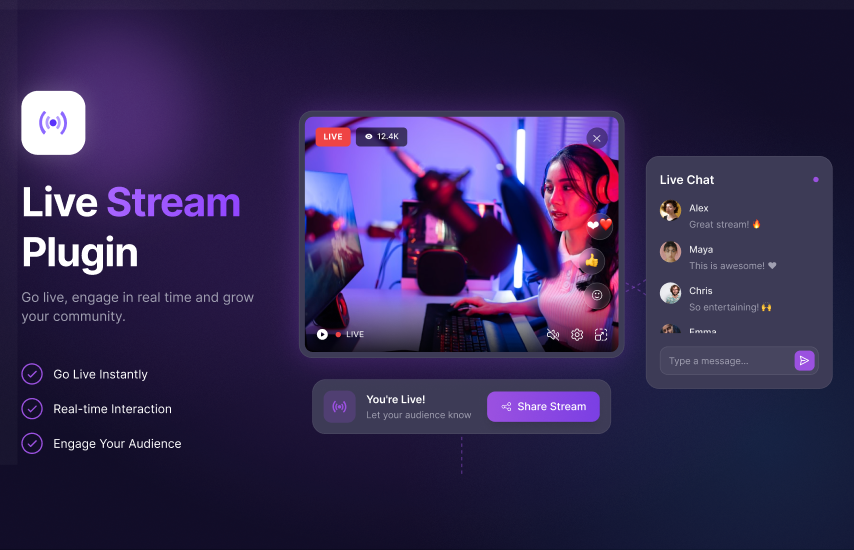
Viewers can comment during the live stream, hosts can like and reply, and users can share stickers, emojis, and GIFs in real time.
This keeps the stream interactive and allows real-time communication between the host and viewers.
Share Your Live Stream in Stories & Feed
After the live stream ends, users can share the recorded stream to Stories, Feed, or both (requires Stories Features Plugin and Activity Plugin).
Push Notifications
Viewers receive notifications when their comments are liked or replied to.
This keeps users informed and encourages them to return to the live stream.
Live Viewers Count
Viewers can see how many people are watching the live stream through a viewer count icon. This shows real-time participation and activity.
Mute/Unmute Live Stream
Hosts can mute or unmute their video stream, and viewers can control their audio while watching. This gives better control over sound and viewing experience.
Post Photos in the Comment Section
Users can share photos in the comment section during the live stream. This makes conversations more visual and interactive.
“Thanks for Watching” Screen
After the live stream ends, viewers see a message thanking them and get an option to start their own live stream. This encourages continued participation on the platform.
Reply, Edit and Delete Comments
Hosts can reply to comments, edit replies, and delete for clarity and better interaction. This helps maintain clear and meaningful conversations.
Report Comment
Users can report inappropriate comments during the live stream. This helps maintain a safe and respectful environment.
Length of the Live Streaming
The live stream duration is recorded automatically and displayed in the header. This helps users track how long the session has been live.
Privacy Setting
Before starting a live stream, users can choose who can watch it and decide whether to share it to Stories or Feed. This gives full control over visibility and audience access.
Camera Rotation
Hosts can switch between front and rear cameras during the live stream (iOS and Android App only). This allows better content presentation and flexibility while streaming.
Delete Live Stream from Story and Feed
Users can remove their live stream from Stories and Feed at any time. This allows control over shared content.
Blinking in stories while Live
The Stories icon shows a blinking red dot when a live stream is active. This helps users quickly identify ongoing live sessions.
Add the Title of Your Live Stream While Sharing
After the live stream ends, hosts can add a title and choose where to share it (Stories or Feed). This helps organize content and improve visibility.
Note While saving video, you need to configure the Amazon S3 from your admin settings.
Admin Panel Settings
Member-level settings:
- Enable/Disable Live Streaming You can easily choose which member levels can use or not use the Live Streaming plugin.
- Allow Save Live Video You can also change the settings to allow your members to save their video to the gallery.
- Shareable Places for Live Video Your members can choose from activity, feed, or both of the options for sharing their live videos. And for that, you have to first install the Activity plugin and the stories feature plugin.
- Maximum Allowed Live Video Duration You can also set the time duration (in minutes) upto which your members can stay live.
- Maximum Allowed Live Streaming Define the number of allowed live streams performed by members.
Global Setting
- While activating this plugin, you can easily embed video by entering the Agora App ID and certificate.
- If you are sharing your live stream to stories or feed, then you have to provide the Agora customer ID and secret key.
- Before selecting the storage, go to Admin panel > Settings > Storage System.
- In the Manage Storage Services, click on Add service
- Choose Amazon S3 from the Service Type, and click on Add service
- You first need to create an Amazon S3 account, then in profile settings, fill in the fields to configure your storage. Click on Save Changes.
- Go to Live Streaming Plugin Settings and choose Amazon S3 from the Storage to share your live video in the activity feed and stories.
- Click on Save Changes
How Does the Live Streaming Plugin Work?
Step 1: Tap “Go Live”
Find this option in your status box and tap it to get started.
Step 2: Configure Your Settings
Set your privacy settings (who can watch) and where to share (Stories, Feed, or both). These simple settings give total control over your broadcast.
Step 3: Start Broadcasting
Click on start live, and you’re instantly connected with your audience. The interface shows you live viewer counts, incoming comments, and all the things you need to engage effectively.
Step 4: Chat with your audience
Interact with your viewers in real time as they join and send comments. Acknowledge reactions and reply, switch cameras for different angles. Mute/unmute when you need to.
Step 5: End and Share
When you’re ready to wrap up, end the stream by clicking “End”. Add a title to your recording and decide whether to share it to Stories, Feed, or both.
FAQs
What platforms does this plugin support?
The Live Streaming Plugin works smoothly across Web, iOS, and Android, with platform-specific optimizations for the best experience on each device.
How can I activate this plugin?
Simply purchase the Live Streaming Plugin and you will receive a unique activation secret key. Enter this key to activate the plugin. This security step ensures only you can configure and manage the live streaming features on your platform.
Do I need to install other plugins for this to work?
The Live Streaming Plugin works independently for basic functionality. However, if you want to share live videos to Stories or Activity Feed, you will need the Stories Feature Plugin and Activity Plugin installed.
Can I control who sees my live streams?
Yes. Before going live, you can set privacy controls to make your stream public, visible to friends or the network, or only to yourself.
How do I prevent spam or inappropriate content during live streams?
You can delete inappropriate comments in real-time and report problematic comments. Also, you can also set limits on stream duration and the number of streams members can perform.
Can I save my live streams after broadcasting?
Yes, if your admin has enabled this setting. After streaming, you can share recordings to Stories and/or Feed. The admin can also allow members to save videos to their device gallery.
How will people know when I go live?
Your followers receive push notifications when you start broadcasting. Additionally, a blinking red dot appears on the Stories icon during active streams, creating visual urgency.