With its intuitive interface and robust features, WSTOOL PRO simplifies the complexities of bulk messaging on WhatsApp. From importing contact lists to crafting personalized messages and scheduling delivery times, WSTOOL PRO puts you in control of your WhatsApp marketing campaigns with ease.
HOW TO USE WSTOOL PRO (WHATSENDER)
Step 1. Download and install WSTOOL PRO on your PC
Click the button below to download the WSTOOLPLUS.EXE file to your computer.
The program is compatible with all Windows versions (Windows 11/10/8).
Double clicking on the exe file will start the installation of the program. If the Windows SmartScreen window appears, first click on “More Info” and then on “Run anyway” to proceed with the installation.
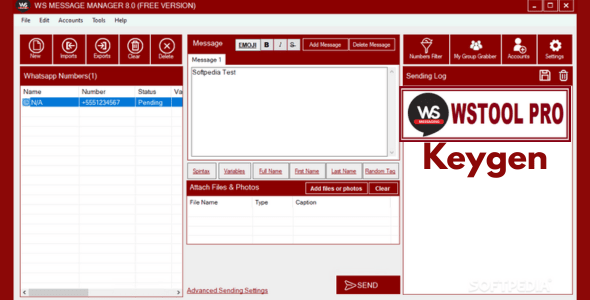
Here is the main program window that will open after installation:
Step 2. Import contacts (recipients)
Contacts can be entered manually or from csv, Excel or txt files.
Click the Imports button and then choose the import mode (from file or manual)
With the “free” version of the program it will be possible to import up to 5 contacts into the program. You need to purchase the PRO version to overcome this limit and import unlimited contacts.
Both in the import from file and in the manual one it is possible to load not only the telephone numbers but also the name of the recipient and other variables (up to 5 variables per contact). These variables can then be inserted (automatically) in the message to personalize it.
If you want to import contacts from Excel file make sure you have all phone numbers in one column (numbers with country code). If in addition to the number you have the contact’s name and other information, make sure you have a format like this (name, number, variable 1, variable 2, etc..) as shown in the following figure:
Once the contacts have been loaded successfully, they will appear on the left side of the program.
Step 3. Send the message to all imported contacts
After uploading the contacts it’s time to write the message to send. You can do this from the text box on the right side of the program. In this box you can enter variables (e.g. FullName) to personalize the message as much as possible. You can also insert emojis, make text bold or italics, insert links, and so on.
Finally press SEND at the bottom right to send all messages. The program will automatically open a window on Chrome with WhatsApp Web. Scan the QR code with your phone (from the app WhatsApp–>Settings–> Linked Device) and after that the message will be sent to all contacts, one by one.
From the Advanced Settings of the program it is recommended to add a delay between messages (at least 2-3 seconds) to reduce the risk of a ban. You can also enable a “sleep” between sending or activate a dialog with “familiar accounts”.